Before restarting network services on Ubuntu, it’s important to first identify which network manager is active on your system. Different versions of Ubuntu may use different tools for managing network configurations, so knowing the active manager ensures you apply the correct commands.
In this guide, we’ll use Ubuntu 18.04 as an example, which relies on Netplan to define and manage network settings. Netplan works in conjunction with either NetworkManager or systemd-networkd (called renderers) to control network interfaces, and understanding this setup is essential before restarting your network services.

What is Netplan used for?
Netplan is a modern command-line utility designed to simplify network configuration on Ubuntu systems. Introduced in Ubuntu 17.10, it provides an easy way to define and manage network interfaces using a clear YAML-based syntax. Netplan doesn’t work alone—it relies on underlying network daemons, called renderers, such as NetworkManager or systemd-networkd, which handle the actual communication between the operating system and the network hardware. You can choose which renderer to use depending on your environment and requirements.
All network settings are stored in YAML files located in the /etc/netplan/ directory. These files contain the configuration for each network interface, allowing you to centralize and manage your network setup efficiently.
The first step in managing your network with Netplan is to review the available configuration files. You can list them using the following command:
This will display all YAML configuration files present in the directory, such as 50-cloud-init.yaml, which you can then open and inspect to see your current network settings.
ls /etc/netplan/
Here we can see configuration file called “50-cloud-init.yaml”.
Now we need to read it to see configuration:
cat /etc/netplan/50-cloud-init.yaml
In the Renderer we can see the “NetworkManager” – that’s our active network manager.
To restart it simply run:
sudo service network-manager restart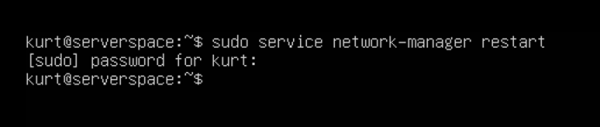
And then to see it’s status run:
sudo service network-manager status
As we can see it’s active and running.
If you see “networkd” in the Renderer in the netplan configuration file you need to restart it with the command:
sudo systemctl restart systemd-networkd
And then to see it’s status run:
sudo systemctl status systemd-networkd
That’s all, network is restarted.
Conclusion
Restarting network services in Ubuntu is a straightforward process once you understand which network manager is active on your system. For systems using NetworkManager, a simple sudo service network-manager restart will refresh network settings, while for systems using systemd-networkd, sudo systemctl restart systemd-networkd is required. By checking your Netplan configuration in /etc/netplan/*.yaml, you can quickly identify the active renderer and ensure your network is properly restarted and functioning. This knowledge is essential for system administrators and users who need to troubleshoot connectivity issues or apply network configuration changes.
FAQ – Frequently Asked Questions
- Q1: How do I check which network manager is active on Ubuntu?
A1: Open the Netplan configuration file in /etc/netplan/ and look for the renderer field. It will show either NetworkManager or networkd. - Q2: What command restarts NetworkManager?
A2: Use sudo service network-manager restart to restart the NetworkManager service on your Ubuntu system. - Q3: How do I restart systemd-networkd?
A3: Run sudo systemctl restart systemd-networkd to restart the network daemon if your Netplan configuration uses networkd as the renderer. - Q4: How can I check the status of the network service after restarting?
A4: For NetworkManager, use sudo service network-manager status. For systemd-networkd, use sudo systemctl status systemd-networkd. - Q5: Will restarting the network disconnect my SSH session?
A5: Restarting NetworkManager or systemd-networkd may temporarily interrupt network connections, including SSH. Ensure you have alternative access if restarting remotely.